Understand the game.
Give your agent the project itself: its source, content, assets, and editing controls. It can inspect what is there before deciding what to change.
 Dashpop
Build games with Claude Code, Codex, Cursor, VS Code, Claude, or your own harness. MCP connects it to the Dashpop Game Engine, with the tools to shape a world, create its editor, and play what it builds.
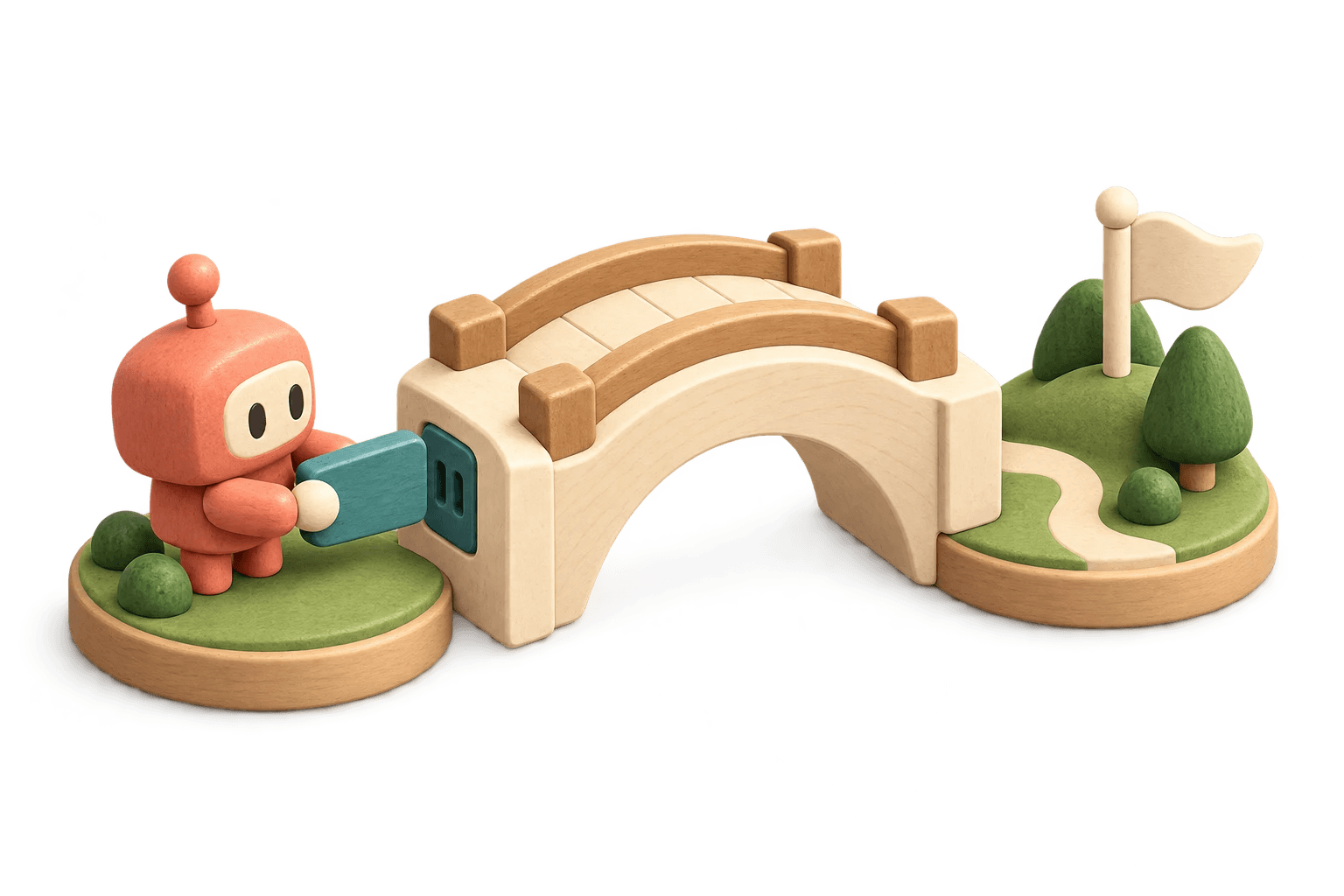
Agent-native means the engine is built for the whole creative loop. Your agent can understand, change, and experience the same game you do.
Give your agent the project itself: its source, content, assets, and editing controls. It can inspect what is there before deciding what to change.
Ask for an island brush, a jump control, or a dialogue editor. Your agent can create the tools that make your game easier to shape by hand.
Run the game, try an input, inspect a frame, and read the result. Your agent gets feedback it can use to refine the next version.
Make a change in the Editor, then ask your agent to keep going. Both work with the same project, so your choices become part of the next conversation.
Describe a game in your agent. Play it in Dashpop. Shape a few details yourself, then ask for the next change.
Your agent keeps its own model, context, and tools. Dashpop gives it a game engine and a shared place to create.
See the creative loop“Make a snowy valley where a little fox lights the lanterns before nightfall.”
Move the cottage. Add a pond. Find the evening light you like.
“Keep the world I shaped. Add a bridge to a new island, with one more lantern to find.”
Choose your agent, connect your Dashpop account, and keep creating. Your agent can list your games, open the one you choose, and work with the same engine and Editor.
For access to just one game, use Connect agent in the Editor.
claude mcp add --transport http dashpop 'https://dashpop.com/api/mcp'Run /mcp in Claude Code, choose dashpop, and authenticate in your browser. Approve access to your Dashpop account.
https://dashpop.com/api/mcpPaste this into your conversation, or append it to CLAUDE.md. Keep your existing project instructions.
# Dashpop game workspace

Use the Dashpop MCP server: https://dashpop.com/api/mcp.

Use dashpop.games.list, then dashpop.games.open to select the requested game for this session. Refresh tools/list after opening the game.

Discover and select authoring.describe first, then read it. Select the exact operations you need from the current catalog and refresh tools/list after selection. If the client cannot refresh its tool inventory, reconnect before continuing.

Read the relevant authoring.guidance references advertised by the game before planning or authoring. Work with the existing source, assets and Editor controls; preserve the creator’s changes and requested mechanics. Build and inspect the actual result before describing it as working.

Use Dashpop’s existing project tools for changes. Keep credentials in the client’s OAuth store or private local connection file. Ask for a bounded credit budget before paid asset generation.

Retirement: use maintained server discovery instead of these bootstrap instructions when it provides the same connection and guidance context.
Hosted connections use OAuth: sign in to Dashpop and approve the requested account or game access. No API key is needed. Complete any account requirements shown during sign-in. Your workspace may restrict custom servers.
If only discovery tools appear, ask the agent to select authoring.describe, refresh its tools, or reconnect. Reconnect after an expired session; revoked access needs fresh consent.
Local connections need the Dashpop host running on the client’s machine. Keep the private connection file on that machine; no secret belongs in chat.
The Dashpop plugin brings the same game tools into your agent, along with a workflow for creating and reviewing games. Direct MCP connections give your own harness access to the same engine.
Choose Claude Code, Codex, Cursor, VS Code / Copilot, Claude, ChatGPT, or a custom MCP harness above. Hosted connections use Streamable HTTP and OAuth; local clients use stdio. You choose the agent, model, and workflow.
You can connect directly through MCP. The plugin packages the connection and game creation guidance together for clients that support plugins.
Yes. Play, Editor, Assets, Code, and Tools stay together in the Dashpop workspace. You can use the game’s creative controls, inspect the source, and ask your agent to continue from the changes you made.
The account connection lets your agent list your games and open the one you choose. Connect agent in the Editor grants access to just that game. Your agent can inspect, edit, build, and playtest using its approved access.